Internet Explorer 7.0 can't add favorites
"Unable to create XXX: Unspecified error".
If you have moved the location of your Favorites folder, IE7's Protected Mode will prevent you from being able to write to the new location and will cough up an unspecified error when you try to save a web page to your Favorites. Here is how to overcome this:
1. Close Internet Explorer.
2. Click the Start button.
3. Click All Programs.
4. Go into Accessories.
5. Right-click on Command Prompt.
6. Select Run as administrator.
7. When the UAC Prompt appears, click Continue.
8. At the command prompt, go to the new location for your Favorites folder.
9. Input this command without the quotes "icacls favorites /setintegritylevel (OI)(CI)low"
10. Press Enter on the keyboard.
11. Close the window.
-------------------------------------------------------------------
icacls - the name of the command were using
/setintegritylevel - the function used (in pretty plain english, Thanks Microsoft.)
/OI - object inherit, ie, the files get the same integrity level as the folder they are in.
/CI - container inherit, ie, folders get the same integrity level as the folder they are in
-------------------------------------------------------------------
I also had to run this command on my "C:\Users\%USERNAME%\AppData\Local\Temp" and "C:\Users\%USERNAME%\AppData\Local\Temp\Low" folders in order to print from IE. Replace "%USERNAME%" with your username.
Showing posts with label Add. Show all posts
Showing posts with label Add. Show all posts
Wednesday, January 6, 2010

Tuesday, February 10, 2009
Add Logo To Windows Vista System Properties
How could you add a logo or portrait of dream girl to Windows Vista System Properties?
Well, this is just a little Vista trick that involves editing Windows Registry and preparing a BMP file format in a size measured at 120 x 120 pixel.
How to add a logo or portrait to Windows Vista System window?
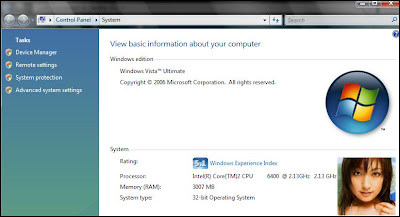
* If you want to add manufacturer information to Windows Vista System window;
Well, this is just a little Vista trick that involves editing Windows Registry and preparing a BMP file format in a size measured at 120 x 120 pixel.
How to add a logo or portrait to Windows Vista System window?

- Using your favourite image editor to resize or crop the target image (logo or portrait of your dream girl) to 120 x 120 pixels in size and save it as BMP file format.
- Copy / move the 120x120 pixels BMP file to System32 directory, e.g.
move Logo.BMP C:\Windows\System32
(assuming you've saved the BMP file as Logo.BMP) - Open up Windows Registry (i.e. click the Vista Orb button, type regedit.exe in the Start Search textbox, click the regedit.exe shortcut listed in the Program list)
- Browse to this Registry key path:
HKEY_LOCAL_MACHINE\SOFTWARE\Microsoft\Windows\CurrentVersion\OEMInformation
- While at the OEMInformation Registry key, right-click on the right-pane, select New then String Value and name it as logo
- Double-click the logo Registry and enter the full path of BMP file in System32, i.e. C:\Windows\System32\Logo.BMP
* If you want to add manufacturer information to Windows Vista System window;
- Browse to Register key path:
HKEY_LOCAL_MACHINE\SOFTWARE\Microsoft\Windows\CurrentVersion\OEMInformation
- At the OEMInformation Registry key, right-click on the right-pane, select New then String Value and name it as Manufacturer
- Double-click the Manfacturer Registry and enter the manufacturer information, i.e. IBM, Sony, HP, or yourname.
Monday, November 17, 2008
Add videos to VirtueMart products - with the help of AllVideos Plugin!
AllVideos has made it very easy for people since June 2006 ( :D) to add videos in their Joomla! content. So a natural progression to this would be to add videos in e-shops/product pages as well. We all know that VirtueMart is the best e-shop implementation out there.
So how do we enable video playback in VirtueMart, in an easy manner, similar to the AllVideos Plugin? Well... we just enable the use of AllVideos inside VirtueMart! :D
Here's the solution to enable the plugin for the "product details" page:
Open up the file administrator/components/com_virtuemart/html/shop.product_details.php and in the end of it, look for:
and add ABOVE this some code. Overall the change is this:
This will load the "content type" plugins in VirtueMart. That means that you can use the AllVideos Plugin to add videos in your products (as showcase) and even use the "Tabs & Slides in Content Items" Plugin to display your product's details in Tabs and/or Slides!!
Cool, huh??
So how do we enable video playback in VirtueMart, in an easy manner, similar to the AllVideos Plugin? Well... we just enable the use of AllVideos inside VirtueMart! :D
AllVideos has made it very easy for people since June 2006 ( :D) to add videos in their Joomla! content. So a natural progression to this would be to add videos in e-shops/product pages as well. We all know that VirtueMart is the best e-shop implementation out there.
So how do we enable video playback in VirtueMart, in an easy manner, similar to the AllVideos Plugin? Well... we just enable the use of AllVideos inside VirtueMart! :D
Here's the solution to enable the plugin for the "product details" page:
Open up the file administrator/components/com_virtuemart/html/shop.product_details.php and in the end of it, look for:
- Code: Select all
- /* Finish and Print out the Page */
echo $template;
and add ABOVE this some code. Overall the change is this:
- Code: Select all
- // start - enable "content type" plugin parsing
global $_MAMBOTS;
$_MAMBOTS->loadBotGroup( 'content' );
$row->text = $template;
$results = $_MAMBOTS->trigger( 'onPrepareContent', array( &$row, &$params, $page ), true );
$template = $row->text;
// end - enable "content type" plugin parsing
/* Finish and Print out the Page */
echo $template;
This will load the "content type" plugins in VirtueMart. That means that you can use the AllVideos Plugin to add videos in your products (as showcase) and even use the "Tabs & Slides in Content Items" Plugin to display your product's details in Tabs and/or Slides!!
Cool, huh??
Subscribe to:
Posts (Atom)